Adding Room Types
Navigate to Hotel Booking → Smart Rate Engine → Room Types.
This tab shows all MPHB accommodation types available in your system. Click Add Room Type to select which ones SRE should manage. You can add as many room types as you need — there's no limit on either the Free or Pro plan.
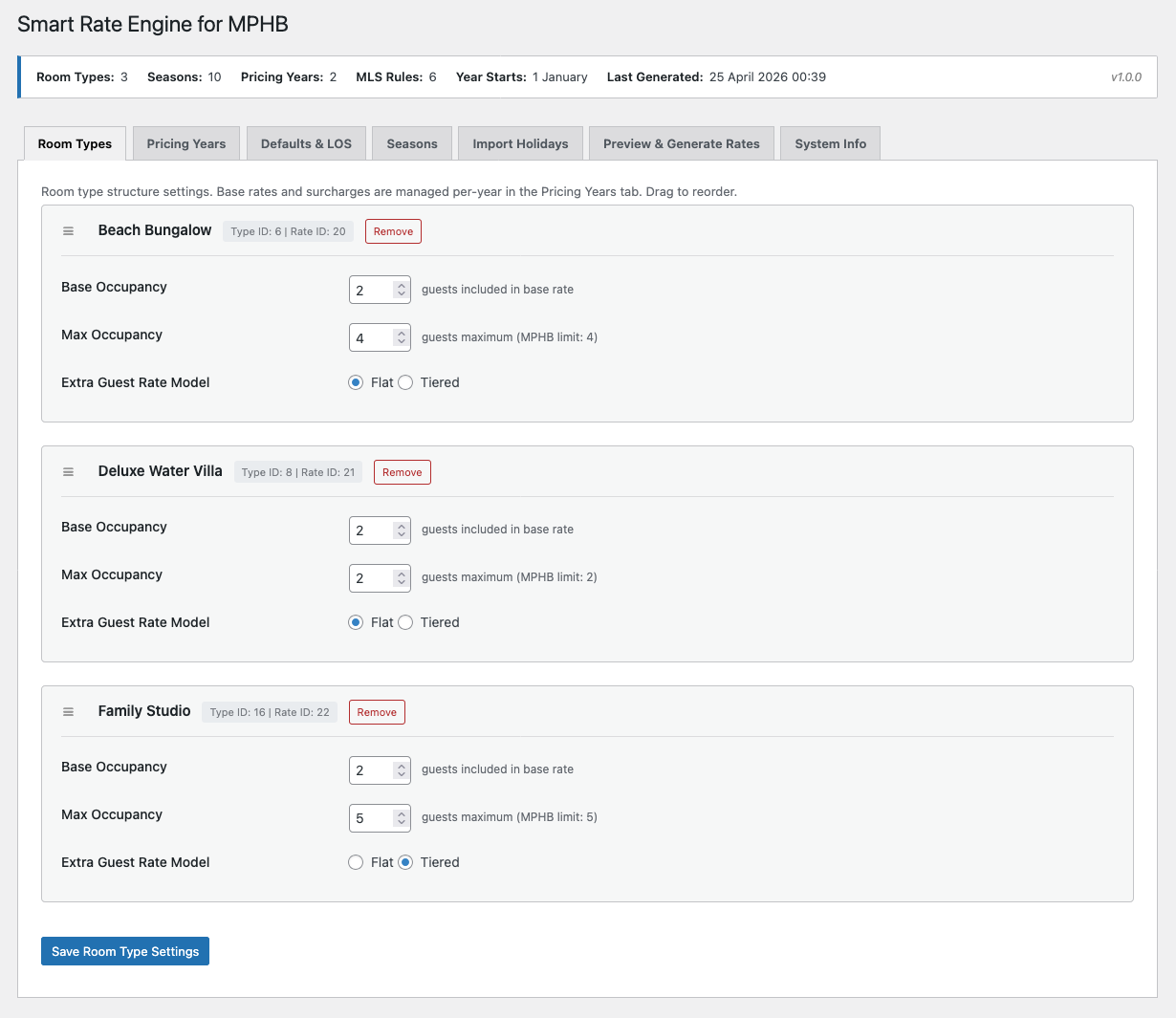
When you add a room type, SRE reads its configuration from MPHB and creates a rate management entry with three settings: base occupancy, max occupancy, and extra guest rate model.
Base Occupancy
Base occupancy is the number of guests included in the base nightly rate. Guests above this number attract a surcharge. For example, if a Beach Bungalow has a base occupancy of 2 and a max occupancy of 4, the base rate covers the first 2 guests. Guests 3 and 4 each pay an extra guest surcharge per night.
On fresh install, base occupancy defaults to the lower of 2 or the room type's total capacity. This ensures surcharge headroom is immediately visible for most configurations.
Max Occupancy
Max occupancy is pulled from MPHB and represents the maximum number of guests the room type can accommodate. SRE uses this as the upper limit for surcharge calculations. You can adjust it, but it cannot exceed the MPHB limit.
Extra Guest Rate Model
Choose how surcharges are calculated for guests above the base occupancy:
Flat — every extra guest pays the same surcharge per night. This is the simpler model and works in both MPHB guest management modes. For example, if the flat surcharge is $50, guest 3 pays $50 and guest 4 pays $50.
Tiered — each occupancy level has a different surcharge. This allows more granular pricing — for example, guest 3 pays $40 and guest 4 pays $60. Tiered surcharges are only available in MPHB's Guests Only mode (Mode B). In Adults & Children mode (Mode A), flat pricing is used regardless of this setting.
Guest Management Modes
SRE adapts automatically to MPHB's guest management setting. You configure this in MPHB, not in SRE — SRE reads the setting and adjusts its interface accordingly.
| MPHB Setting | SRE Mode | Behaviour |
|---|---|---|
| Adults & Children | Mode A | Separate adult and child surcharge fields. Flat pricing only. |
| Guests Only | Mode B | Combined guest surcharge. Both flat and tiered pricing supported. |
| Room Rate Only | Mode C | Surcharges stored but not displayed or charged on the front end. |
A mode indicator banner appears on the Pricing Years and Preview & Generate tabs so you always know which mode is active.
One Rate Per Room Type
SRE manages a single MPHB rate per room type. If a room type has multiple MPHB rates (for example, Standard and Non-Refundable), SRE manages the rate selected when the room type was added. Other rates are not affected by SRE operations.
Each room type card displays the Type ID and Rate ID for reference, confirming exactly which MPHB rate SRE is managing.
SRE manages your base accommodation rate. For add-ons like breakfast or airport transfers, use MPHB's built-in Services feature — these are added to the booking separately and aren't part of the nightly rate. For early bird and last-minute discounts, use MPHB's Coupons feature to create percentage or fixed-amount discounts with date-based validity rules.
Reordering and Removing
Room types can be reordered by dragging — the order determines how they appear in the Pricing Years tab and in preview output. To remove a room type from SRE management, click the Remove button on its card. This only removes it from SRE — it does not delete anything in MPHB.
Add all room types you want SRE to manage before moving to the Pricing Years tab. Each room type you add will need a base rate and surcharge configured in the next step.