The Final Step
This is where everything comes together. The Preview & Generate tab calculates your rates using all the configuration you've set up — room types, base rates, season multipliers, LOS tiers, and surcharges — and either shows you the output (preview) or writes it directly into MPHB (generate).
Navigate to Hotel Booking → Smart Rate Engine → Preview & Generate Rates.
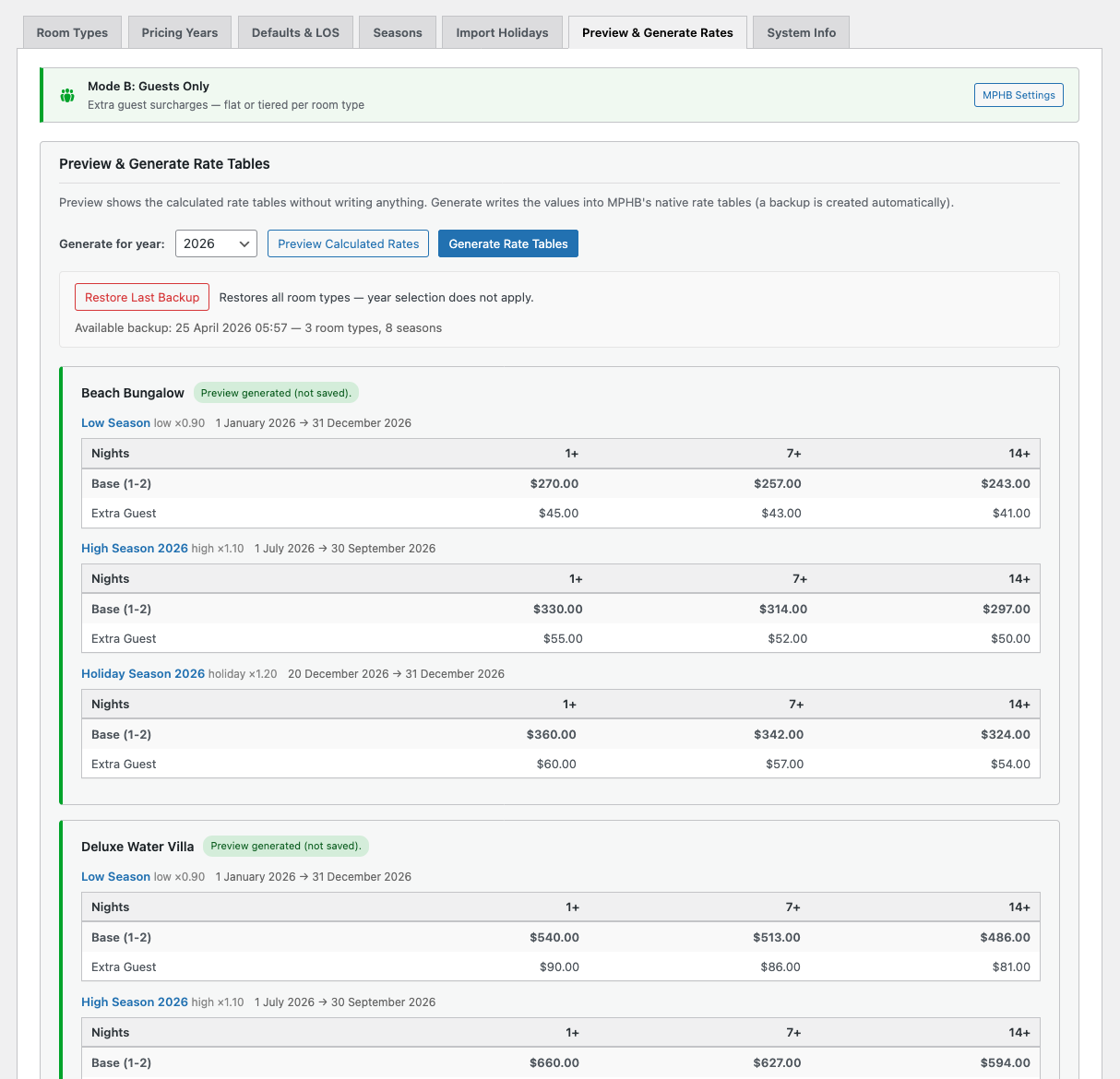
Preview Calculated Rates
Click Preview Calculated Rates to calculate all rates without writing anything. The preview displays a complete rate table for every room type across every active season and LOS tier.
Each rate table shows:
Room type header with a status badge — "Preview generated (not saved)" confirms this is a preview only.
Season sections showing the season name, type key, multiplier, and date range. Each section contains a table with LOS tier columns and rows for the base rate and each surcharge type.
The pricing calculation is straightforward: Base Rate × Season Multiplier × LOS Multiplier = Nightly Rate. All results are rounded to whole numbers.
Always preview first. Check that the rates look correct — especially the first time you set up a new pricing year or after making significant configuration changes. It's much easier to adjust a multiplier and re-preview than to generate, spot an issue, and restore.
Generate Rate Tables
Click Generate Rate Tables to write calculated rates into MPHB's native rate tables. This is the action that actually changes your MPHB data.
When you generate:
1. Backup is created automatically. SRE snapshots your existing MPHB rate data before writing anything. If the backup fails for any reason, generation is aborted — your data is never modified without a safety net.
2. Rates are written per room type, per season. Each room type's rate table is updated with the calculated values for every active season and LOS tier.
3. MLS rules are synced. Generation triggers a full MLS sync — minimum stay rules and rates land in MPHB in a single operation.
4. The generation log is updated. A timestamped entry records what was generated — room types, seasons, and the pricing year.
Select the pricing year from the dropdown before generating. Only seasons belonging to the selected year are included in the generation.
Backup & Restore
SRE automatically backs up MPHB rate data before every write operation. This is non-optional — there's no way to generate without a backup being created first.
The backup includes all MPHB rate data for room types managed by SRE — season prices, booking rules, and related post meta.
Restoring from backup
Click Restore Last Backup to reinstate the previous rate tables for all room types. The restore panel shows the backup timestamp and scope (number of room types and seasons covered).
Key points about restore:
Restore creates its own backup first. Before restoring, SRE backs up the current state. This means a restore is always reversible — you can restore, check the result, and restore again to get back to where you were.
Restore is year-independent. The backup covers all room types regardless of which pricing year was selected when the backup was created.
Restore does not restore SRE settings. Only MPHB rate data is restored. Your SRE configuration (room types, pricing years, season mappings, multipliers) remains unchanged. If you restore from backup, regenerate rates afterwards to ensure MLS rules are in sync with the restored rate data.
Restored rates may not match your current SRE configuration if you've changed settings since the backup was created. Run a preview to compare, then regenerate if needed to bring everything back in sync.
MPHB Rate Protection
Once SRE has generated rates, it displays a warning notice on MPHB's native rate and season edit screens. This reminds users that manual changes to rates managed by SRE will be overwritten on the next generation.
You can optionally hide the MPHB Rates and Seasons menu items entirely from the Defaults & LOS tab — this prevents accidental navigation to those screens. Direct URL access still works for administrators who need it.