Requirements
Before installing Smart Rate Engine, make sure your environment meets these requirements:
| WordPress | 5.6 or higher |
| PHP | 7.4 or higher |
| MotoPress Hotel Booking | 5.4 or later — must be installed and active |
SRE works with both Hotel Booking Lite (free) and Hotel Booking Premium. See the FAQ for details on Lite limitations.
Installation
Install Smart Rate Engine like any WordPress plugin:
Manual upload: Download the plugin zip file. Navigate to Plugins → Add New → Upload Plugin. Select the zip file, click Install Now, then Activate.
Via FTP: Extract the zip file and upload the smart-rate-engine-mphb folder to /wp-content/plugins/. Activate through the WordPress Plugins screen.
The free version of Smart Rate Engine has been submitted to WordPress.org and is pending review. Once approved, you'll be able to install directly via Plugins → Add New by searching for "Smart Rate Engine for MPHB".
SRE requires MotoPress Hotel Booking to be installed and active. If MPHB is not detected, SRE will display a notice and the menu item will not appear.
First-Run Checklist
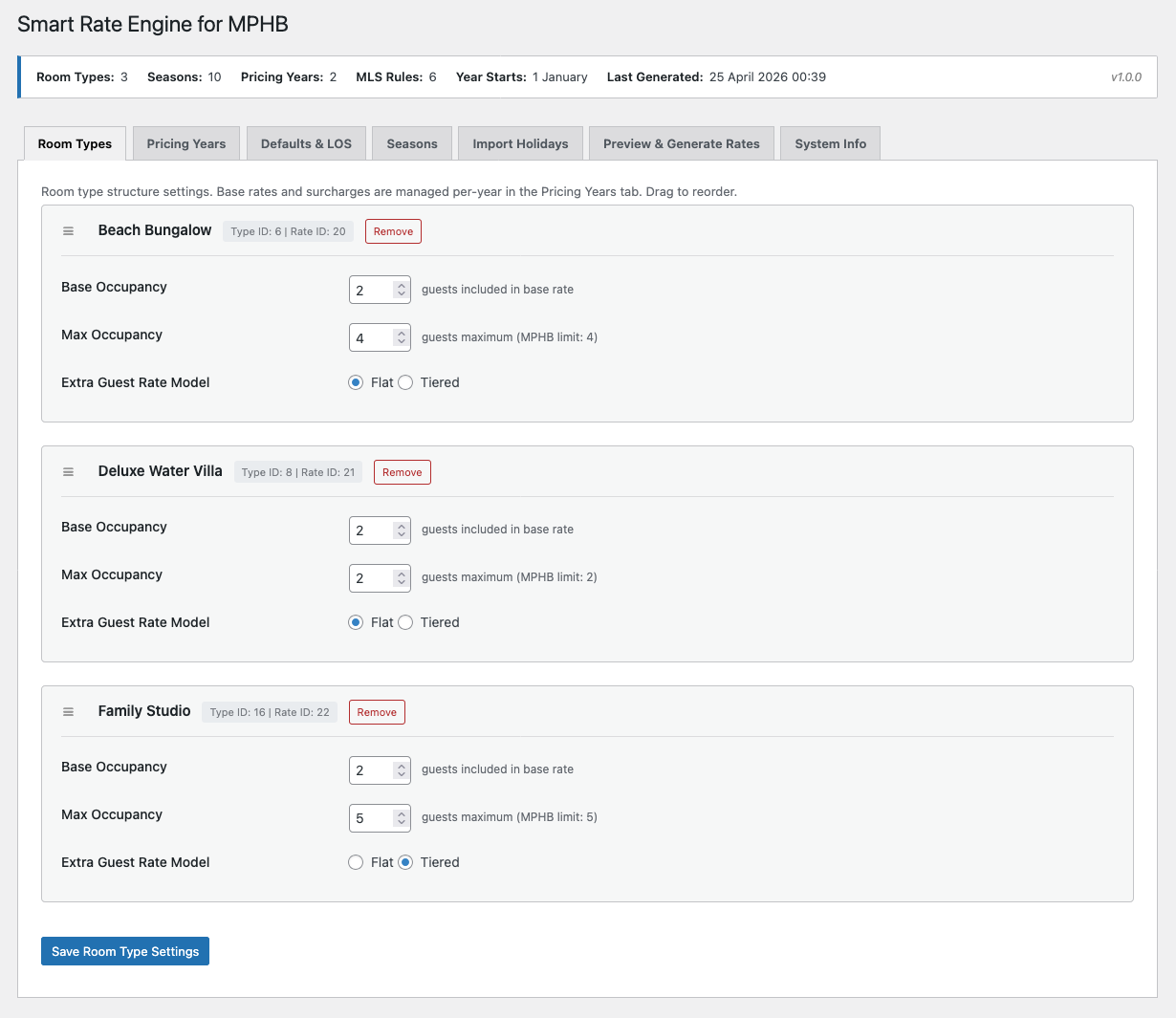
When you first activate SRE, navigate to Hotel Booking → Smart Rate Engine. You'll see a status bar at the top of the page showing your current configuration state — room types, seasons, pricing years, and MLS rules.
On first run, these will all show zero. SRE guides you through setup in the correct order with a four-step prerequisite checklist. Each step unlocks the next:
Step 1 — Room Types: Add at least one MPHB accommodation type for SRE to manage. This is your starting point — you can't set rates without room types.
Step 2 — Pricing Years: Create a pricing year and set base nightly rates for each room type. This establishes the foundation all rate calculations build from.
Step 3 — Defaults & LOS: Configure season type multipliers and length-of-stay tiers. These define how rates vary by season and booking length.
Step 4 — Seasons: Map your existing MPHB seasons to SRE season types. This connects your MPHB seasons to SRE's rate engine.
Once all four steps are complete, the Preview & Generate tab becomes fully functional — you can preview calculated rates and generate them into MPHB.
Before adding seasons to SRE, create a full-year Low Season in MPHB first (covering January 1 to December 31) and map it in SRE. This ensures all dates are covered by a base rate. Then layer High Season, Holiday, and other seasons on top — MPHB's overlapping season logic handles the rest.
Recommended Setup Order
Follow this order for the smoothest setup experience. Each page in this documentation covers one step in detail:
| Order | Tab | What you configure |
|---|---|---|
| 1 | Room Types | Which MPHB accommodation types SRE manages |
| 2 | Pricing Years | Base nightly rates and guest surcharges per year |
| 3 | Defaults & LOS | Season type multipliers, LOS tiers, minimum stay defaults |
| 4 | Seasons | Map MPHB seasons to season types |
| 5 | Import Holidays | Calendar holiday import Pro |
| 6 | Preview & Generate | Preview output, generate rates, backup & restore |
The Status Bar
The green status bar at the top of the SRE admin page shows a live summary of your configuration: room types count, active seasons, pricing years, MLS rules synced, year start date, and last generation timestamp. Use it as a quick health check — if any number looks wrong, you know where to investigate.